Best Software for Editing PDFs in 2026: 8 Tools Compared

- 1
 Adobe AcrobatFull PDF editing standardVisit
- 2
 PDFelementValue Acrobat alternativeVisit
- 3
 Foxit PDF EditorBusiness PDF editingVisit
- 4
 Nitro PDFWindows PDF editingVisit
- 5
 Sejda PDF EditorBrowser PDF editingVisit
- Adobe Acrobat leads for full PDF editing, with the deepest feature set.
- PDFelement and Foxit suit users who want Acrobat-like editing at lower cost.
- Sejda and Smallpdf suit occasional browser editing without installing software.
- Free tiers limit pages or tasks, so check limits against your document size before starting.
Quick comparison
| Product | Ideal for | Price from | Free version | |
|---|---|---|---|---|
| Adobe Acrobat | Full PDF editing standard | See website | Free trial | Visit |
| PDFelement | Value Acrobat alternative | See website | Free trial | Visit |
| Foxit PDF Editor | Business PDF editing | See website | Free trial | Visit |
| Nitro PDF | Windows PDF editing | See website | Free trial | Visit |
| Sejda PDF Editor | Browser PDF editing | Free | Yes | Visit |
 Smallpdf | Simple browser PDF tools | Free | Yes | Visit |
 PDF-XChange Editor | Windows editing with free tier | Free | Yes | Visit |
 LibreOffice Draw | Free offline PDF editing | Free | Yes | Visit |
The best options for what's the best software for editing pdfs
We compared PDF editors on text editing, form filling, signatures, conversion, OCR and price. Editing a PDF means different things, from fixing a typo to rebuilding a form, so we covered both light and deep editing. Our pick for most users is Adobe Acrobat for depth, with PDFelement as the value alternative.
Adobe Acrobat
Ideal for: Full PDF editing standard
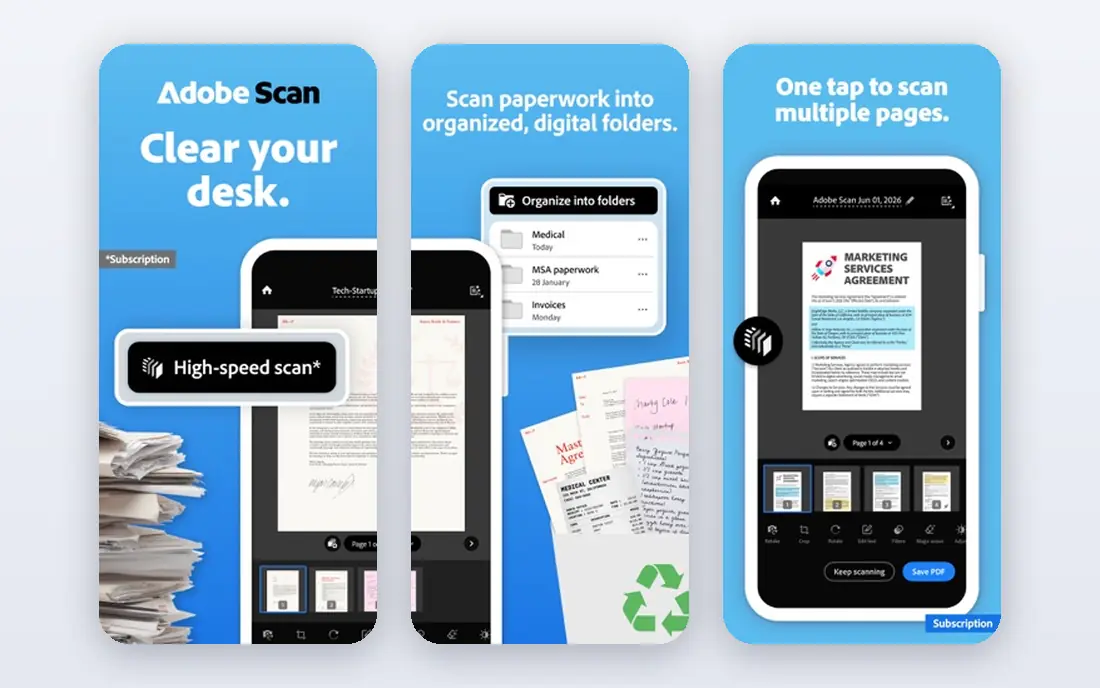
Adobe Acrobat remains the standard for PDF editing, covering text, images, forms, signatures, redaction and OCR in one app. That depth suits professionals who edit PDFs daily. The subscription costs real money and the install is heavy, so occasional users may prefer a browser tool.
For most readers, the deciding question with Adobe Acrobat is fit rather than raw feature count. Check the plan limits that matter to you, such as seats, usage caps and what happens when a trial ends, before you commit to a paid tier. If the free tier or trial covers your core task, use it for a full week of real work before paying, and keep an eye on renewal terms and cancellation steps. That short test usually tells you more than any feature list, and it keeps the choice grounded in how you actually work day to day.
- Deep text and image editing
- Forms
- Signatures
- OCR
- Subscription cost
- Heavier install
PDFelement
Ideal for: Value Acrobat alternative
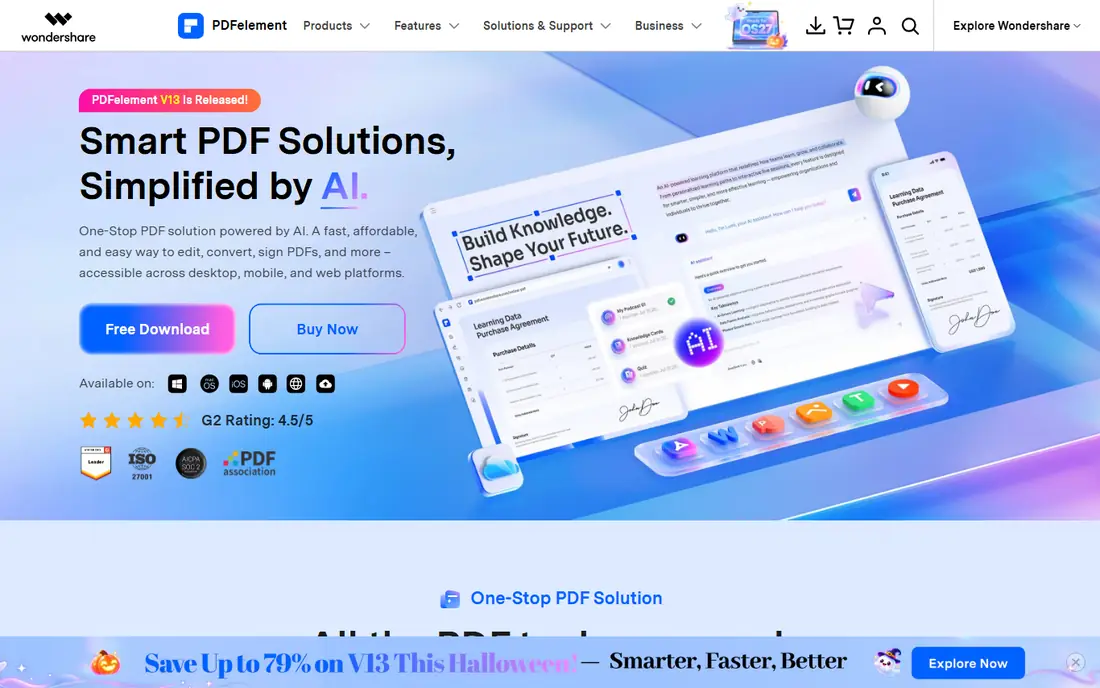
PDFelement from Wondershare offers strong text editing, forms, OCR and signatures at a lower cost than Acrobat. That value makes it popular with small businesses. The interface differs from Acrobat, so Acrobat veterans need a short adjustment period, and some features sit in higher tiers.
For most readers, the deciding question with PDFelement is fit rather than raw feature count. Check the plan limits that matter to you, such as seats, usage caps and what happens when a trial ends, before you commit to a paid tier. If the free tier or trial covers your core task, use it for a full week of real work before paying, and keep an eye on renewal terms and cancellation steps. That short test usually tells you more than any feature list, and it keeps the choice grounded in how you actually work day to day.
- Strong editing and forms
- OCR
- Lower cost than Acrobat
- Interface differs from Acrobat
- Some features are paid
Foxit PDF Editor
Ideal for: Business PDF editing
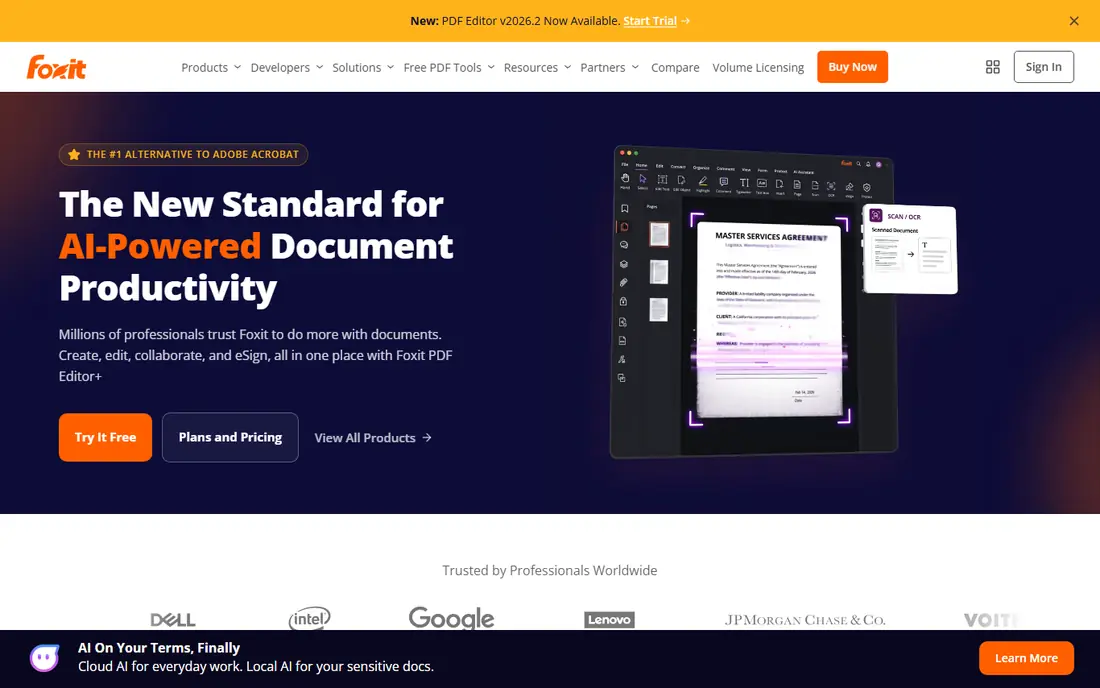
Foxit PDF Editor provides a full editing suite with collaboration and security features for business teams. That business focus suits organisations needing controlled document workflows. The subscription costs money, and the interface feels corporate rather than consumer-friendly, but the capability is strong.
For most readers, the deciding question with Foxit PDF Editor is fit rather than raw feature count. Check the plan limits that matter to you, such as seats, usage caps and what happens when a trial ends, before you commit to a paid tier. If the free tier or trial covers your core task, use it for a full week of real work before paying, and keep an eye on renewal terms and cancellation steps. That short test usually tells you more than any feature list, and it keeps the choice grounded in how you actually work day to day.
- Full editing suite
- Collaboration
- Security features
- Subscription cost
- Interface is business-focused
Nitro PDF
Ideal for: Windows PDF editing
Nitro PDF offers strong editing, conversion and batch tools, popular with Windows business users. Batch processing saves time on large document sets. The Windows focus means Mac users need another pick, and full use needs a paid licence or subscription.
For most readers, the deciding question with Nitro PDF is fit rather than raw feature count. Check the plan limits that matter to you, such as seats, usage caps and what happens when a trial ends, before you commit to a paid tier. If the free tier or trial covers your core task, use it for a full week of real work before paying, and keep an eye on renewal terms and cancellation steps. That short test usually tells you more than any feature list, and it keeps the choice grounded in how you actually work day to day.
- Strong editing and conversion
- Batch tools
- Windows focus
- Windows focused
- Subscription or licence cost
Sejda PDF Editor
Ideal for: Browser PDF editing
Sejda PDF Editor runs in a browser, letting you edit text, fill forms and sign without installing software. That convenience suits occasional edits. Free limits on tasks and pages apply, so large documents or frequent editing need a paid plan.
For most readers, the deciding question with Sejda PDF Editor is fit rather than raw feature count. Check the plan limits that matter to you, such as seats, usage caps and what happens when a trial ends, before you commit to a paid tier. If the free tier or trial covers your core task, use it for a full week of real work before paying, and keep an eye on renewal terms and cancellation steps. That short test usually tells you more than any feature list, and it keeps the choice grounded in how you actually work day to day.
- Browser editing
- Forms and signatures
- Simple workflow
- Free tier limits tasks and pages
- Advanced features are paid
Smallpdf
Ideal for: Simple browser PDF tools
Smallpdf offers easy browser tools for editing, converting, compressing and signing PDFs. That breadth suits users who handle PDFs in many small ways. Deep text editing is lighter than Acrobat, and free daily task limits apply, so it fits occasional use best.
For most readers, the deciding question with Smallpdf is fit rather than raw feature count. Check the plan limits that matter to you, such as seats, usage caps and what happens when a trial ends, before you commit to a paid tier. If the free tier or trial covers your core task, use it for a full week of real work before paying, and keep an eye on renewal terms and cancellation steps. That short test usually tells you more than any feature list, and it keeps the choice grounded in how you actually work day to day.
- Easy editing and conversion
- Browser based
- Toolset breadth
- Free tier limits tasks per day
- Deep editing is lighter
PDF-XChange Editor
Ideal for: Windows editing with free tier
PDF-XChange Editor is a strong Windows PDF editor with a useful free tier, covering annotation, form filling and light editing. That free value suits Windows users. Full editing features need a paid licence, and Mac users need a different tool.
For most readers, the deciding question with PDF-XChange Editor is fit rather than raw feature count. Check the plan limits that matter to you, such as seats, usage caps and what happens when a trial ends, before you commit to a paid tier. If the free tier or trial covers your core task, use it for a full week of real work before paying, and keep an eye on renewal terms and cancellation steps. That short test usually tells you more than any feature list, and it keeps the choice grounded in how you actually work day to day.
- Strong Windows editor
- Free tier useful
- Annotation tools
- Windows only
- Full features are paid
LibreOffice Draw
Ideal for: Free offline PDF editing
LibreOffice Draw offers free, offline PDF editing as part of LibreOffice, handling text, shapes and forms. That offline, no-cost combination suits users avoiding subscriptions. Editing is page-based, so complex layouts can shift, and it suits light edits better than full document rebuilds.
For most readers, the deciding question with LibreOffice Draw is fit rather than raw feature count. Check the plan limits that matter to you, such as seats, usage caps and what happens when a trial ends, before you commit to a paid tier. If the free tier or trial covers your core task, use it for a full week of real work before paying, and keep an eye on renewal terms and cancellation steps. That short test usually tells you more than any feature list, and it keeps the choice grounded in how you actually work day to day.
- Free open-source editing
- Offline use
- Form support
- PDF editing is page-based
- Complex layouts can shift
How we picked these
We compared official feature pages, pricing pages, app store listings, privacy policies and public reviews for each option below. We kept only products that exist and work now, that fit the topic directly, and whose official homepage we could confirm. Where a price was not published clearly, we wrote See website rather than guessing, and we favoured options with a free tier or trial where one exists.
Editing PDFs without breaking layout
Make a copy before editing. PDF editing can shift fonts, spacing and layout, especially with complex documents. Working on a copy lets you compare and revert if the result looks wrong.
Check fonts after editing. Missing fonts cause substitution that changes appearance. If the edited PDF will be shared or printed, embed fonts where the tool allows, and preview on another device before sending.
Use the right tool for the job. Fixing a typo suits a browser editor, while rebuilding forms, redacting sensitive text or running OCR needs a full editor such as Acrobat or PDFelement. Matching tool depth to task saves time and errors.
Frequently asked questions
What is the best software for editing PDFs?
Adobe Acrobat leads for full editing depth, while PDFelement and Foxit offer strong value alternatives. Sejda and Smallpdf suit occasional browser editing.
Can I edit a PDF for free?
Yes, Sejda, Smallpdf, PDF-XChange Editor and LibreOffice Draw offer free tiers for editing. Free limits on tasks, pages or features apply, so check limits for your document.
How do I edit text in a PDF?
Open the PDF in an editor such as Acrobat, PDFelement or Sejda, select the text tool, and edit directly. Complex layouts may shift, so preview the result before sharing.
Is Adobe Acrobat worth the cost?
For daily professional PDF work, yes, Acrobat offers the deepest editing, forms, signatures and OCR. Occasional users usually do better with a free browser tool or PDFelement.
Can I edit a PDF on my phone?
Yes, Smallpdf, Sejda and Acrobat mobile apps offer editing on phones, though complex edits are easier on desktop. For a quick typo or signature, mobile editing works well.