Best Software for Thumbnails in 2026: 8 Tools Compared

- 1
 CanvaAll-round templates and assetsVisit
- 2
 Adobe ExpressAdobe AI and brand controlsVisit
- 3
 SnappaFast, simple thumbnailsVisit
- 4
 VistaCreateSmall-team valueVisit
- 5
 PhotopeaFree Photoshop-style editingVisit
- Canva is the best all-round thumbnail tool for most creators, with templates, stock assets and a free tier that covers real work.
- Adobe Express suits creators who want Adobe's AI tools and brand controls in a fast, template-driven editor.
- Snappa is the fastest tool for simple, repeatable thumbnails, with Pro at $10 per month on annual billing.
- VistaCreate offers strong value for small teams, since one Pro subscription covers up to ten people in recent comparisons.
- Design at the right size, test readability at small sizes, and keep text short: a thumbnail that cannot be read on a phone will not get clicked.
Quick comparison
| Product | Ideal for | Price from | Free version | |
|---|---|---|---|---|
| Canva | All-round templates and assets | Free | Yes | Visit |
| Adobe Express | Adobe AI and brand controls | $9.99 per month | Yes | Visit |
| Snappa | Fast, simple thumbnails | Free | Yes | Visit |
| VistaCreate | Small-team value | Free | Yes | Visit |
| Photopea | Free Photoshop-style editing | Free | Yes | Visit |
 GIMP | Free desktop editing power | Free | Yes | Visit |
 Pixlr | Browser photo editing | Free | Yes | Visit |
 Picmaker | Thumbnail templates for creators | Free | Yes | Visit |
The best software for thumbnails
These eight tools cover template editors, browser editors and free desktop editors. We compared official pricing pages, feature pages and public reviews, focusing on template quality, export options and the true cost of each plan.
Canva
Ideal for: All-round templates and assets
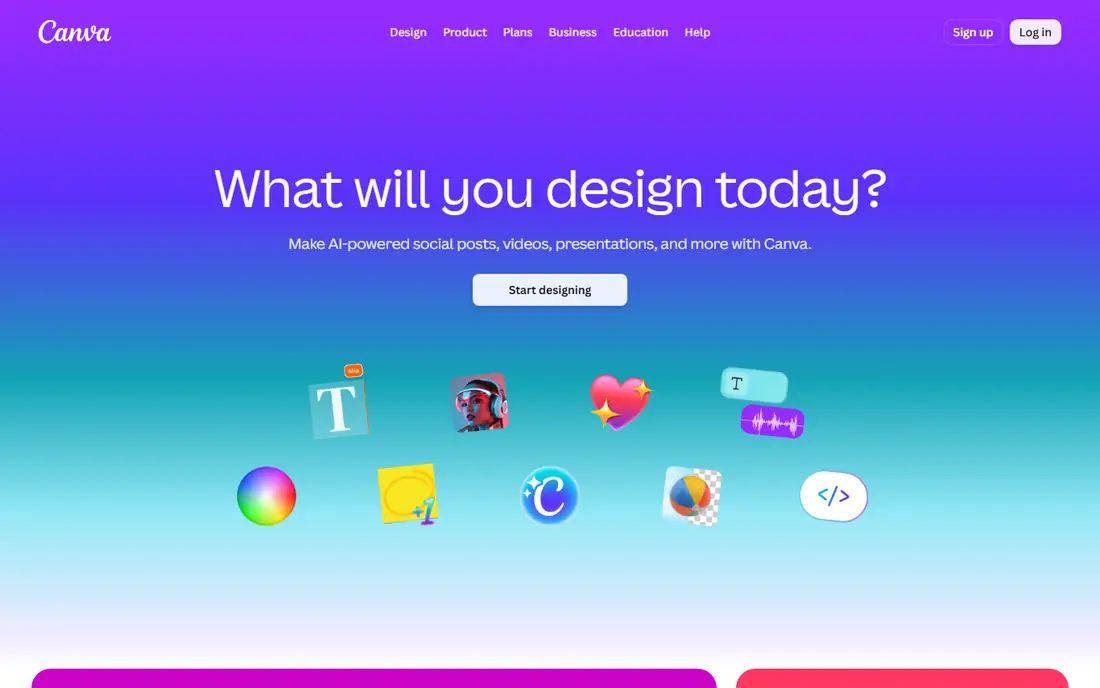
Canva is the default thumbnail tool for most creators, and for good reason. Its template library covers YouTube, social and blog thumbnails in the right sizes, its stock photos, fonts and graphics remove the need for separate asset libraries, and the editor runs in the browser with no install. The free tier covers real work, while Pro adds a brand kit, background remover and premium assets.
Advanced photo editing is thinner than in Photoshop-style tools, so heavy retouching needs another app. For a creator who makes thumbnails weekly and wants speed plus consistency, Canva's templates and brand controls are the strongest combination in this list.
- Huge template library
- Stock photos and fonts
- Brand kit on Pro
- Pro costs more than Snappa for solo users
- Advanced photo editing is limited
Adobe Express
Ideal for: Adobe AI and brand controls
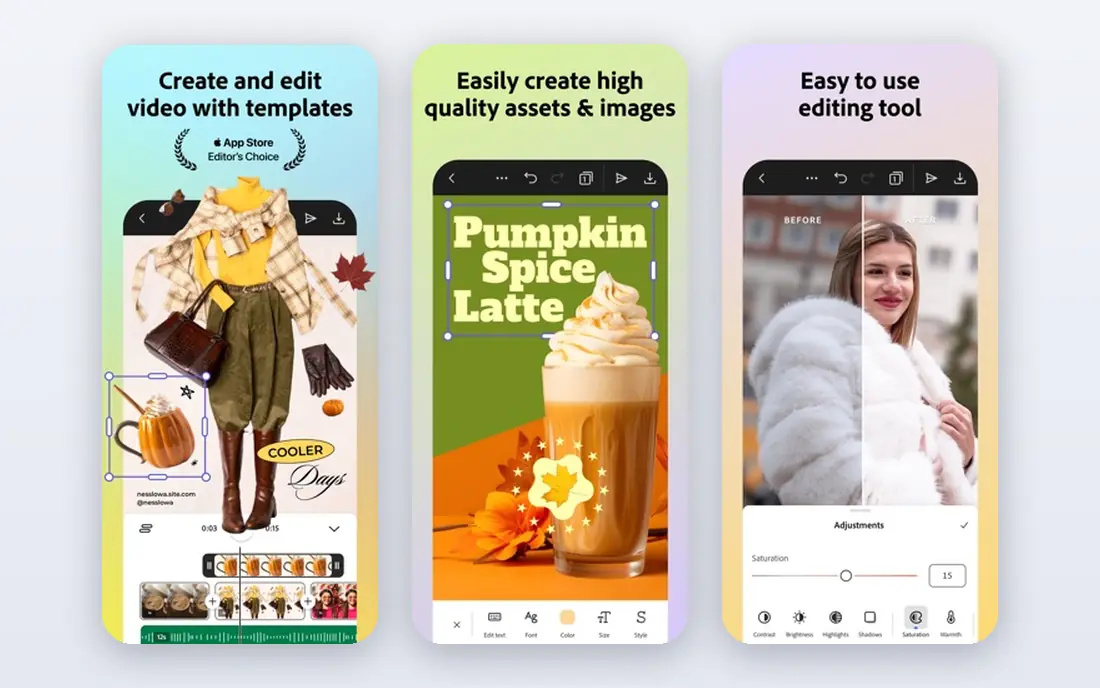
Adobe Express is Adobe's fast, template-driven editor for creators and small teams. It offers templates for thumbnails and social graphics, AI-powered tools for image generation and background removal, and brand controls that keep team output consistent. A free tier covers basic use, while Premium costs $9.99 per month.
Teams already in the Adobe ecosystem will get the most from its integrations, while solo creators may find Canva's free tier more generous. For a team that needs brand governance plus speed, Adobe Express is a strong pick.
- Adobe AI tools
- Strong brand controls
- Templates for every platform
- Premium plan costs $9.99 per month
- Deepest features need Adobe ecosystem familiarity
Snappa
Ideal for: Fast, simple thumbnails
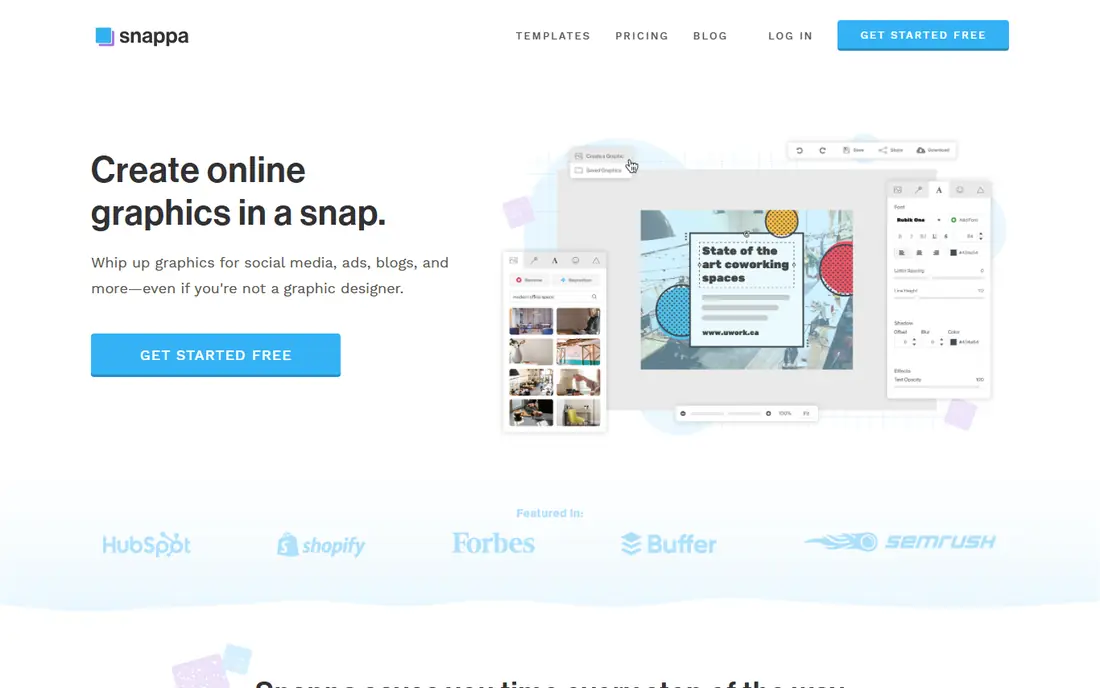
Snappa is built for speed. Pick a size, choose a template or background, add text and export, all in minutes, with a clean interface that never gets in the way. Pro costs $10 per month on annual billing, or $15 monthly, and Team at $20 per month on annual billing covers up to five people with shared fonts, colors and folders.
The feature list is deliberately narrow: no AI tools, no video, no mobile app and no SVG or PDF export, whichever plan you pick. For a creator who makes simple, repeatable thumbnails and values speed over depth, Snappa is an excellent fit. For complex designs, pair it with a fuller editor.
- Very fast for simple designs
- Pro at $10 per month on annual billing
- Team plan covers up to five people
- No AI tools, video or mobile app
- No SVG or PDF export
VistaCreate
Ideal for: Small-team value
VistaCreate, formerly Crello, offers a large template library for thumbnails and social graphics, with animation options and a straightforward editor. Its Pro plan has been listed at $120 per year, and in recent comparisons one Pro subscription covers up to ten people, which makes it the best value in this list for a small team.
The ecosystem is smaller than Canva's, and AI features are thinner than Adobe Express. For a small team that needs good templates at a low per-person cost, VistaCreate is hard to beat.
- Strong template library
- Pro covers up to ten people in recent comparisons
- Low annual price
- Smaller ecosystem than Canva
- AI features are thinner
Photopea
Ideal for: Free Photoshop-style editing
Photopea is the best free Photoshop-style editor for thumbnails. It runs in the browser, supports layers, masks and blending, opens PSD and XCF files, and costs nothing, supported by ads. That makes it the right tool when a thumbnail needs real photo editing, such as cutting out a subject or adjusting light, rather than just text on a template.
There is no template library, so you start from a blank canvas or your own design, and the ad-supported interface can distract. For creators comfortable with layer-based editing, Photopea gives professional power at no cost.
- Free and browser-based
- Photoshop-style layers and masks
- Opens PSD files
- Ad-supported free tier
- No template library like Canva
GIMP
Ideal for: Free desktop editing power
GIMP is the free desktop editor for creators who want full control without a subscription. It offers layers, masks, filters and a plugin ecosystem, runs on Windows, Mac and Linux, and costs nothing with no ads. For thumbnails that need detailed retouching, compositing or custom effects, GIMP delivers professional depth.
The learning curve is steeper than Canva or Snappa, and the interface feels dated compared with modern web editors. For a creator willing to learn layer-based editing, GIMP is a permanent, cost-free tool that never expires.
- Completely free desktop editor
- Layers, masks and plugins
- No ads
- Steeper learning curve
- Interface feels dated to some users
Pixlr
Ideal for: Browser photo editing
Pixlr offers browser-based photo editing in two flavors: a quick editor for fast fixes and a fuller editor for layered work. AI tools for background removal and generation sit on paid tiers, while the free tier covers core editing with ads. That makes Pixlr a good middle ground between a template tool and a full desktop editor.
Heavy, layered projects suit Photopea or GIMP better, and the free tier's ads can interrupt flow. For quick photo edits on a thumbnail, especially on a shared or low-spec computer, Pixlr is a convenient choice.
- Browser-based photo editing
- AI tools on paid tiers
- Quick and accessible
- Free tier includes ads
- Advanced features need a subscription
Picmaker
Ideal for: Thumbnail templates for creators
Picmaker focuses on the thumbnail job itself, with templates sized for YouTube and social platforms, stock assets and a simple editor aimed at creators. The free tier covers basic use, with paid plans adding premium templates and features.
The library is smaller than Canva's, and the tool is less versatile for general design work. For a YouTube creator who wants thumbnail templates without the breadth of a full design platform, Picmaker is a focused, easy option.
- Thumbnail-focused templates
- YouTube sizes built in
- Free tier for basic use
- Smaller library than Canva
- Advanced features need a paid plan
How we picked these
We compared official pricing pages, feature pages and public reviews for thumbnail and design tools available in October 2026. We favored tools with a working free tier, YouTube and social sizes, and a current version, and we weighed template quality, editing depth and price, since different creators need different combinations.
What to check before you choose thumbnail software
Start with size and readability. YouTube thumbnails display at 1280 by 720 pixels, but viewers see them much smaller on phones, so design at full size and check readability at a small preview. Use short text, ideally three to five words, high contrast and one clear focal point, since a busy thumbnail gets skipped.
Then test your workflow speed. Make three thumbnails in each shortlisted tool and time yourself, including finding assets, adding text and exporting. The tool that lets you finish a good thumbnail in ten minutes will get used weekly, while a powerful tool that takes an hour will sit idle.
Finally, check export and brand needs. Confirm you can export high-quality PNG or JPG files, save brand colors and fonts, and reuse templates across videos. Teams should also check seat limits and shared folders, since a tool that charges per person can become expensive for a small team.
Frequently asked questions
What software is best for thumbnails?
Canva is the best all-round thumbnail tool for most creators, thanks to templates and stock assets. Snappa is fastest for simple thumbnails, Adobe Express suits brand-focused teams, and Photopea or GIMP suit creators who need deep photo editing free.
Can I make thumbnails for free?
Yes, Canva, Snappa, VistaCreate, Photopea, GIMP, Pixlr and Picmaker all offer free tiers that cover real thumbnail work. Paid plans add premium templates, brand kits and AI tools, but free tiers are enough for most creators starting out.
What size should a YouTube thumbnail be?
YouTube recommends 1280 by 720 pixels, with a 16:9 aspect ratio, in JPG or PNG format. Design at that size, then preview small, since most viewers see thumbnails on phones.
Is Canva good for YouTube thumbnails?
Yes, Canva is one of the best tools for YouTube thumbnails, with sized templates, stock photos and fonts, and a brand kit on Pro. Its free tier covers most creator needs, while Pro adds premium assets and background removal.
Do I need Photoshop for thumbnails?
No, most creators can make strong thumbnails in Canva, Snappa or VistaCreate without Photoshop. Photopea and GIMP offer Photoshop-style editing free for creators who need deeper photo work.