Which App Is Best for PDF Editing for Free in 2026: 7 Apps Compared

- 1
 SejdaBrowser PDF editingVisit
- 2
 PDFescapeFree online forms and editsVisit
- 3
 LibreOffice DrawOffline desktop editingVisit
- 4
 PDF-XChange EditorWindows PDF editingVisit
- 5
 SmallpdfQuick online PDF toolsVisit
- Sejda and PDFescape suit browser-based text edits and forms, while LibreOffice Draw suits offline desktop editing.
- PDF-XChange Editor suits Windows users who want a strong free editor with annotation and signing tools.
- Smallpdf, iLovePDF, and Xodo suit quick tasks like merging, compressing, and signing on the go.
- Truly free PDF editing usually means limits on pages, files per day, or file size, so check limits before a big job.
- For scanned PDFs, you need OCR first, and only some free tools include it without payment.
Quick comparison
| Product | Ideal for | Price from | Free version | |
|---|---|---|---|---|
| Sejda | Browser PDF editing | Free | Yes | Visit |
| PDFescape | Free online forms and edits | Free | Yes | Visit |
| LibreOffice Draw | Offline desktop editing | Free | Yes | Visit |
| PDF-XChange Editor | Windows PDF editing | Free | Yes | Visit |
| Smallpdf | Quick online PDF tools | Free | Yes | Visit |
 iLovePDF | Everyday PDF tasks | Free | Yes | Visit |
 Xodo | Mobile and web signing | Free | Yes | Visit |
The best free PDF editing apps
We compared official feature pages, pricing pages, app store listings, and public reviews for seven free PDF editors. Our pick for most people is Sejda for its browser-based editing, with LibreOffice Draw close behind for people who want a fully offline desktop tool.
Sejda
Ideal for: Browser PDF editing
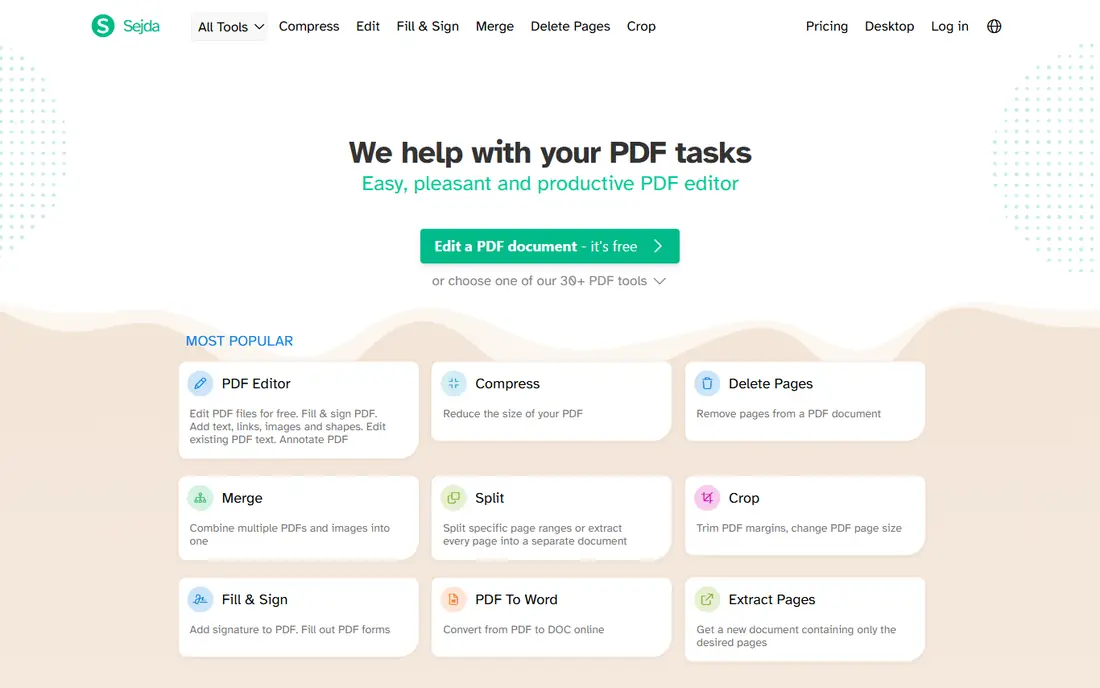
Sejda runs in the browser and lets you edit text, add images, fill forms, sign, and annotate PDFs without installing software. That makes it useful on shared or work computers where installs are blocked. The editor handles common tasks well, such as fixing a typo, adding a signature, or filling a form before sending it back.
Free use is limited by files per hour and task limits, so a large batch of documents will hit a wall. Sejda is best for occasional edits rather than daily heavy use. For a quick, no-install edit, it is our top free pick.
- Edit text and images in browser
- Forms and signatures
- No install needed
- Free plan limits files per hour
- Larger jobs need a paid plan
PDFescape
Ideal for: Free online forms and edits
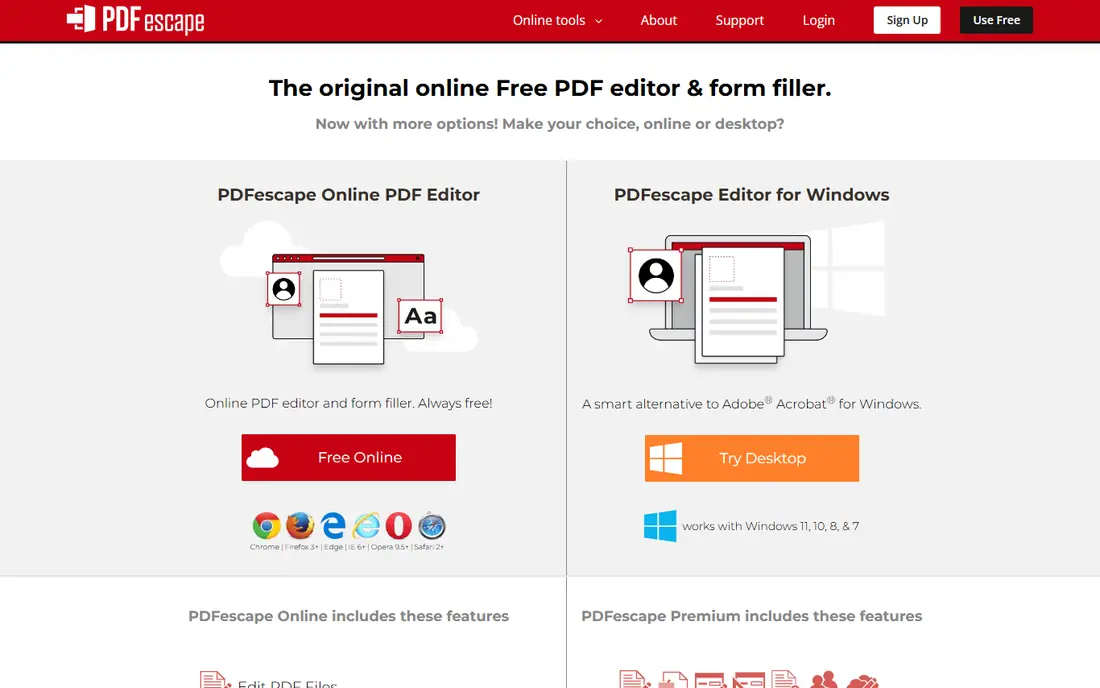
PDFescape offers a free online PDF editor plus a desktop version, with tools for text, form fields, annotations, and page management. It suits students and office workers who need to fill forms, add notes, or white out small sections. The free online version covers many everyday tasks without payment.
The interface feels older than rivals, and free accounts face file size and page limits. Heavy users will need a premium plan. For simple form work and light edits, PDFescape remains a reliable free choice.
- Free online editor
- Form fields and annotations
- Desktop app option
- File size limits on free plan
- Interface feels dated
LibreOffice Draw
Ideal for: Offline desktop editing
LibreOffice Draw is part of the free LibreOffice suite and can open PDFs for editing on Windows, Mac, and Linux. You can change text, move objects, add shapes, and export back to PDF, all offline and without an account. That privacy and price combination is hard to beat, especially for people who dislike uploading documents to web tools.
PDF editing in Draw is not perfect. Complex layouts, fonts, and forms can shift, and signing tools are thinner than in dedicated PDF apps. For simple text and layout fixes on your own computer, Draw is excellent. For forms and signatures, pair it with Sejda or Xodo.
- Fully free and offline
- Edits text and objects
- No account needed
- PDF layout can shift
- Weaker form and signing tools
PDF-XChange Editor
Ideal for: Windows PDF editing
PDF-XChange Editor is a Windows desktop app with a generous free tier for viewing, annotating, signing, and basic editing. Markup tools suit reviewers, teachers, and office workers who comment on documents all day. It runs fast and handles large files better than most browser tools.
The free version adds watermarks to some advanced features, and there is no Mac or Linux version. Windows users who want a daily PDF editor without paying should start here. For Mac users, Sejda or LibreOffice Draw are better free paths.
- Strong annotation and markup
- Signing tools
- Fast on Windows
- Windows only
- Some features add watermarks in free version
Smallpdf
Ideal for: Quick online PDF tools
Smallpdf is known for simple online tools: merge, split, compress, convert, edit, and sign PDFs in a clean interface. It suits people who need a fast fix, such as merging scans into one file or compressing a large PDF for email. The workflow is clear, with each tool doing one job well.
Free use limits the number of tasks per day, and text editing is more basic than in Sejda. Smallpdf is best as a quick toolkit rather than a full editor. For everyday PDF chores, it is one of the easiest free tools to use.
- Easy merge, split, and compress
- Edit and sign tools
- Clean interface
- Free plan limits daily tasks
- Editing text is basic
iLovePDF
Ideal for: Everyday PDF tasks
iLovePDF covers the full range of everyday PDF jobs: merge, split, compress, convert, edit, sign, and protect files. Mobile apps make it useful on the go, and the interface stays simple across tools. For people who juggle many small PDF tasks, having one site for all of them saves time.
Free accounts face task and file size limits, and deep text editing is not its strength. Use iLovePDF for organization, conversion, and signing, and Sejda for heavier text edits. As an all-round free toolkit, it earns its place here.
- Wide tool set
- Merge, edit, and sign
- Mobile apps
- Free limits on tasks and file size
- Text editing is limited
Xodo
Ideal for: Mobile and web signing
Xodo works on web, Android, and iOS, with strong annotation, highlighting, signing, and form filling. It suits people who read and sign PDFs on a phone or tablet, such as field workers, students, and managers on the move. Cloud sync keeps documents available across devices, and the free tier covers core reading and signing well.
Text editing is lighter than in Sejda or PDF-XChange Editor, so Xodo is not the best tool for rewriting document text. For reading, marking up, and signing, it is excellent. If your main PDF job is signing and commenting on the go, Xodo is the best free pick.
- Strong annotation on mobile
- Signing and form filling
- Cloud sync
- Text editing is lighter
- Some features need an account
How we picked these
We compared official feature pages, pricing pages, app store listings, and public reviews for each tool, and we favored tools that still work in October 2026 and offer real free editing, not just viewing. We did not claim hands-on testing, and we weighed text editing, forms, signing, platform support, and free plan limits. Where a price was unclear at writing time we wrote "See website" rather than guessing.
What to check before you choose
Start with your main task. Text edits favor Sejda and PDF-XChange Editor, forms favor PDFescape and Xodo, and offline privacy favors LibreOffice Draw. Check free limits against your real volume, since a limit of a few files per day will frustrate anyone with a deadline. Also check file size limits, since large scans often exceed free caps.
Think about privacy too. Browser tools require uploads, so avoid them for highly sensitive documents unless you trust the vendor and its retention policy. Desktop tools keep files local, which suits contracts and personal records. For scanned PDFs, test OCR support early, since editing a scan without OCR is limited to annotations.
Also plan for the file types you actually handle. A clean, text-based PDF edits well in most free tools, while a scanned PDF needs OCR before text editing works at all, and a form-heavy PDF needs proper form fields rather than text boxes laid over the page. Test your hardest real file in each candidate tool before settling: a multi-page contract, a scanned form, and a file with tables will expose limits fast. Check how the tool handles fonts and layout on export, since a document that looks fine in the editor can shift when opened elsewhere. Page management matters too, since merging, splitting, reordering, and rotating pages are daily tasks for many office workers. If you sign documents often, test the signature flow end to end, including how the recipient opens and verifies the signed file.
Free limits deserve a realistic check against your workload. A limit of a few files per day suits occasional edits, but a deadline week with twenty documents will hit that wall at the worst moment. File size caps also matter, since scanned documents grow large quickly, so compress or split large scans before editing if needed. Privacy is the other hidden cost of free browser tools: uploading sensitive documents means trusting the vendor retention policy, so use desktop tools for contracts, medical forms, and financial records. Keep a backup of the original PDF before every edit, since a bad export can be hard to reverse. With those checks done, a free editor can handle most everyday PDF work without a paid plan.
Frequently asked questions
Which app is best for pdf editing for free?
Sejda is our top pick for browser-based free PDF editing, while LibreOffice Draw is best for offline desktop editing. PDF-XChange Editor is best for Windows users. The right choice depends on whether you need text edits, forms, signing, or offline use.
Can I edit PDF text for free?
Yes, Sejda, PDFescape, LibreOffice Draw, and PDF-XChange Editor all let you edit text for free with limits. Complex layouts and fonts can shift, so check the exported file before sending it. For heavy text work, a paid editor gives cleaner results.
What is the best free PDF editor for signing?
Xodo and Smallpdf are strong free signing picks, with mobile apps and simple signature tools. Sejda also covers signing in the browser. For legal signatures, check whether the recipient needs a certified signature rather than a simple drawn signature.
Can free PDF editors handle scanned documents?
Only some free tools include OCR, which turns a scan into editable text. Without OCR, you can annotate and sign a scan but not edit its text cleanly. Check the OCR feature before choosing a tool for scanned paperwork.
Is it safe to upload PDFs to free online editors?
Reputable tools use encryption and delete files after processing, but uploads still leave your computer. For sensitive contracts, medical records, or financial documents, prefer an offline tool like LibreOffice Draw or PDF-XChange Editor. Always read the retention policy first.