Word alternatives in 2026: 7 Compared

- 1
 Google Docspeople who want free online word processingVisit
- 2
 LibreOffice Writerpeople who want a free desktop word processorVisit
- 3
 WPS Officepeople who want a Word-like interface for freeVisit
- 4
 Zoho Writerteams already using ZohoVisit
- 5
 Apple PagesMac and iPad users who want a free word processorVisit
- Our top choice for most readers is Google Docs, because it fits the widest range of needs in this list.
- If cost matters most, start with the free options here, including LibreOffice Writer and Zoho Writer, and check their limits before paying.
- WPS Office stands out for readers who want a more specialist approach, while OnlyOffice suits a narrower, specific need.
- Check pricing and availability for your own situation, since plans, regions and terms change during the year.
Quick comparison
| Product | Ideal for | Price from | Free version | |
|---|---|---|---|---|
| Google Docs | people who want free online word processing | Free | Yes | Visit |
| LibreOffice Writer | people who want a free desktop word processor | Free | Yes | Visit |
| WPS Office | people who want a Word-like interface for free | See website | Yes | Visit |
| Zoho Writer | teams already using Zoho | See website | Yes | Visit |
| Apple Pages | Mac and iPad users who want a free word processor | Free | Yes | Visit |
 Notion | people who want docs plus tasks | See website | Yes | Visit |
 OnlyOffice | teams that want Word compatible editing | See website | Yes | Visit |
The best Word alternatives
We compared official feature pages, pricing pages, app store listings, privacy policies and public reviews to build this list of word alternatives. We looked for options that truly fit the topic, are available in October 2026, and give a clear starting price or a clear free option. This guide covers the strengths and the honest limits of each option, so you can pick with confidence.
Google Docs
Ideal for: people who want free online word processing
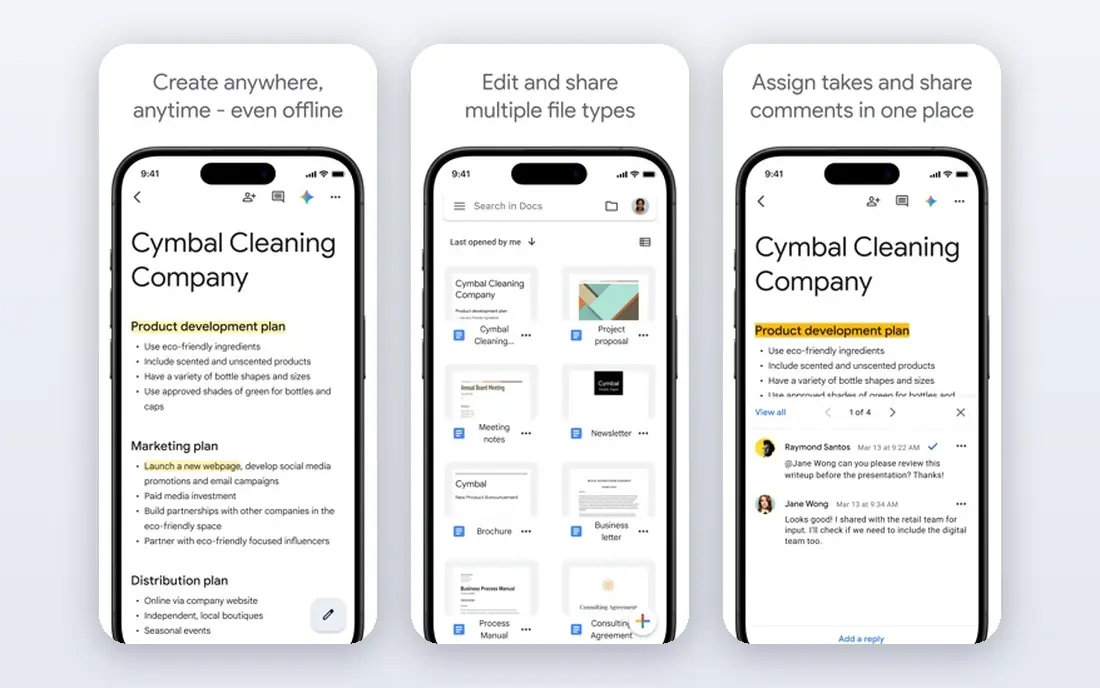
Google Docs is a free online word processor with live collaboration. In practice, its live editing suits teams that write together, and that is the main reason it earns a place here. Check the official pricing page before you buy, since plans and prices change during the year. Readers who match the profile above will get the most from it, while others may find a better fit further down this list.
The honest catch is that complex Word formatting may shift on import. We compared official feature pages, pricing pages, app store listings, privacy policies and public reviews for this list. Our pick for most people is the first option that fits their budget and workflow, not necessarily the most expensive one. Before you commit, check the current pricing page and the terms that apply to your own use, since both can change.
- Free
- Real-time collaboration
- Autosave in Drive
- Offline use needs setup
- Formatting can shift in Word files
LibreOffice Writer
Ideal for: people who want a free desktop word processor
LibreOffice Writer is a free desktop word processor. In practice, its desktop depth suits writers who work offline, and that is the main reason it earns a place here. Look at the free tier limits first, because a free plan that caps the feature you need most is not really free for your use. Readers who match the profile above will get the most from it, while others may find a better fit further down this list.
The honest catch is that cloud collaboration is weaker than Google Docs. Our check focused on whether each option truly fits the topic, what it costs to start, and where its limits sit. If you are unsure, start with a free tier or trial and test it on a real task before committing. Before you commit, check the current pricing page and the terms that apply to your own use, since both can change.
- Free and open source
- Full desktop features
- Word file support
- Interface feels dated
- Collaboration is weaker than cloud tools
WPS Office
Ideal for: people who want a Word-like interface for free
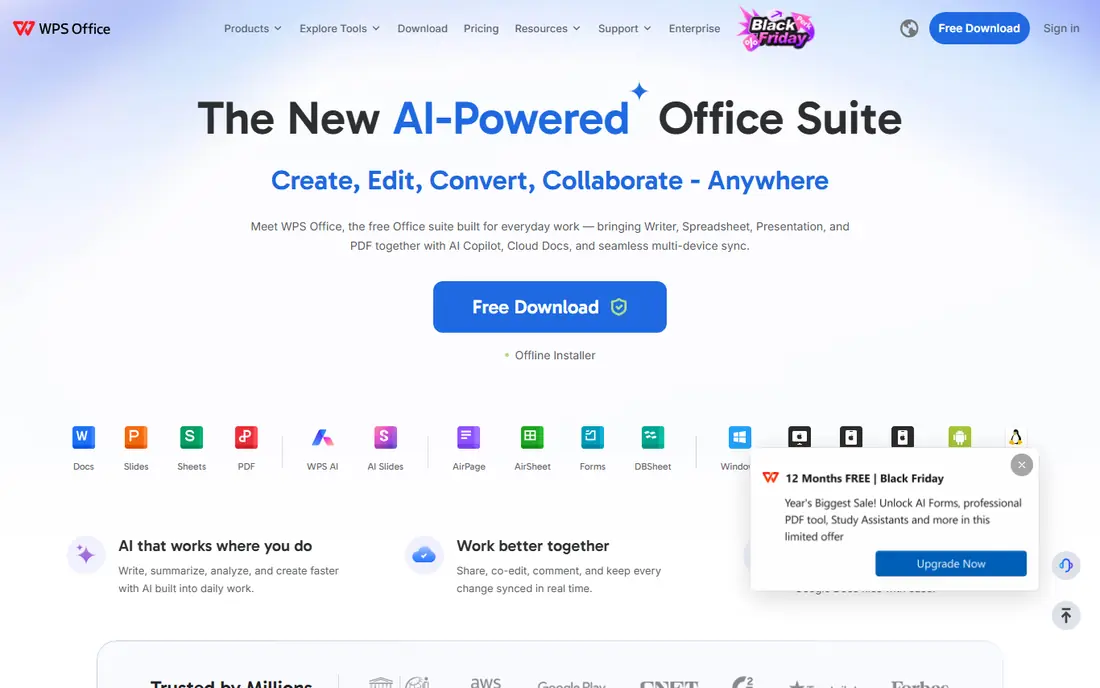
WPS Office is an office suite with a familiar Word-like layout. In practice, its familiar layout eases switching from Word, and that is the main reason it earns a place here. Compare the same feature across two or three options here, rather than judging a tool by its homepage alone. Readers who match the profile above will get the most from it, while others may find a better fit further down this list.
The honest catch is that free tier ads can distract. We left out options that did not fit the topic, even when they were popular in a nearby category. The right choice depends more on your workflow than on a single feature list. Before you commit, check the current pricing page and the terms that apply to your own use, since both can change.
- Word-like interface
- PDF tools
- Mobile apps
- Ads on free tier
- Some features need Premium
Zoho Writer
Ideal for: teams already using Zoho
Zoho Writer is a clean online word processor. In practice, its clean writing view suits focused drafting, and that is the main reason it earns a place here. Check the official pricing page before you buy, since plans and prices change during the year. Readers who match the profile above will get the most from it, while others may find a better fit further down this list.
The honest catch is that its ecosystem is smaller than the largest suites. We compared official feature pages, pricing pages, app store listings, privacy policies and public reviews for this list. Our pick for most people is the first option that fits their budget and workflow, not necessarily the most expensive one. Before you commit, check the current pricing page and the terms that apply to your own use, since both can change.
- Clean writing tools
- Collaboration
- Zoho suite link
- Ecosystem is smaller than Google or Microsoft
- Offline use is limited
Apple Pages
Ideal for: Mac and iPad users who want a free word processor
Apple Pages is a free word processor on Apple devices. In practice, its templates suit letters, reports and resumes on a Mac, and that is the main reason it earns a place here. Look at the free tier limits first, because a free plan that caps the feature you need most is not really free for your use. Readers who match the profile above will get the most from it, while others may find a better fit further down this list.
The honest catch is that Windows users cannot use it. Our check focused on whether each option truly fits the topic, what it costs to start, and where its limits sit. If you are unsure, start with a free tier or trial and test it on a real task before committing. Before you commit, check the current pricing page and the terms that apply to your own use, since both can change.
- Free on Apple devices
- Templates
- ICloud sync
- Apple only
- Word formatting can shift
Notion
Ideal for: people who want docs plus tasks
Notion is a workspace that also handles documents. In practice, its flexible pages suit notes, wikis and plans, and that is the main reason it earns a place here. Compare the same feature across two or three options here, rather than judging a tool by its homepage alone. Readers who match the profile above will get the most from it, while others may find a better fit further down this list.
The honest catch is that print formatting is weaker than Word. We left out options that did not fit the topic, even when they were popular in a nearby category. The right choice depends more on your workflow than on a single feature list. Before you commit, check the current pricing page and the terms that apply to your own use, since both can change.
- Flexible pages
- Databases
- Collaboration
- Not a full Word replacement for print formatting
- Offline use is limited
OnlyOffice
Ideal for: teams that want Word compatible editing
OnlyOffice is an office suite with strong Word compatibility. In practice, its Word compatibility suits teams sharing Word files, and that is the main reason it earns a place here. Check the official pricing page before you buy, since plans and prices change during the year. Readers who match the profile above will get the most from it, while others may find a better fit further down this list.
The honest catch is that its design is plainer than Google Docs. We compared official feature pages, pricing pages, app store listings, privacy policies and public reviews for this list. Our pick for most people is the first option that fits their budget and workflow, not necessarily the most expensive one. Before you commit, check the current pricing page and the terms that apply to your own use, since both can change.
- Strong Word compatibility
- Docs, sheets and slides
- Self-host option
- Interface is plainer
- Some features need paid plans
How we picked these
We compared official feature pages, pricing pages, app store listings, privacy policies and public reviews. We kept only options that exist and work in October 2026 and truly fit the topic, and we left out popular options that did not fit. We note where a price could not be confirmed as See website, rather than guessing a number.
What to check before you choose
Start with the job you need done, not with the longest feature list. Write down the one task you will do most often, then check whether each option handles that task well on its free tier or trial. Next, check the total cost, including per user fees, add-ons and any limits that force an upgrade. Finally, check availability for your region, device and team size, since many services vary by location. A short trial on a real task tells you more than a homepage ever will.
Price and limits
Free plans are useful, but limits on users, storage, messages or exports often decide whether a free plan works for you. Paid plans should be judged on the features you will actually use, not on the full list. If a price is shown as See website, open the vendor pricing page and note the billing period, since monthly and annual prices differ.
Fit for your workflow
The best option is the one your team will actually use every week. Check integrations with the tools you already use, the learning curve for new users, and the support options when something goes wrong. A simpler tool you use daily beats a powerful tool you avoid.
Frequently asked questions
What is the best option for word alternatives?
There is no single best option for every reader. Google Docs fits the widest range of needs, while LibreOffice Writer suits readers who want a simpler or lower cost start. Match the choice to your budget, device and main task.
Is there a free option for word alternatives?
Some options here offer a free tier or a free trial, including LibreOffice Writer where noted. Check the limits of any free tier, since caps on users, features or use can matter more than the price alone.
How much does word alternatives cost?
Costs vary widely across this list, and some vendors only publish custom pricing. Where we could not confirm a current price, we wrote See website. Open the vendor pricing page and check whether billing is monthly or annual.
How do I choose between these options?
Start with your main task, your budget and the devices you use. Shortlist two or three options, try a free tier or trial on a real task, and check support and integrations before paying.
Are these options still available in October 2026?
We selected options that exist and work in October 2026, based on their official homepages and public listings. Availability, pricing and features can still change, so confirm on the vendor site before you buy.