Zapier alternatives comparison in 2026: 8 Options Compared

- The strongest all round options for zapier alternatives comparison cover the core job well, but they differ sharply on price and depth.
- Free plans and trials vary by product, so check the plan limits before you commit to one tool.
- The best fit depends on team size and workflow, not on which product has the longest feature list.
- A short trial with your own data is the fastest way to narrow this list to one winner.
- Make leads our shortlist for many readers, while the smaller options suit narrower budgets and needs.
Quick comparison
| Product | Ideal for | Price from | Free version | |
|---|---|---|---|---|
 Make | Visual automation workflows | See website | See website | Visit |
 n8n | Self hosted automation | See website | See website | Visit |
 Workato | Enterprise automation | See website | See website | Visit |
 Pabbly Connect | Low cost automation | See website | See website | Visit |
 IFTTT | Simple personal automations | See website | See website | Visit |
 Microsoft Power Automate | Microsoft 365 automation | See website | See website | Visit |
 Activepieces | Open source automation | See website | See website | Visit |
 Tray.io | Complex business workflows | See website | See website | Visit |
The best zapier alternatives comparison
We compared official feature pages, pricing pages, app store listings, privacy policies, and public reviews to build this list. Automation tools connect apps so a task in one app can trigger work in another, without writing code for every step. The options below are all real products that work in October 2026.
Make
Ideal for: Visual automation workflows
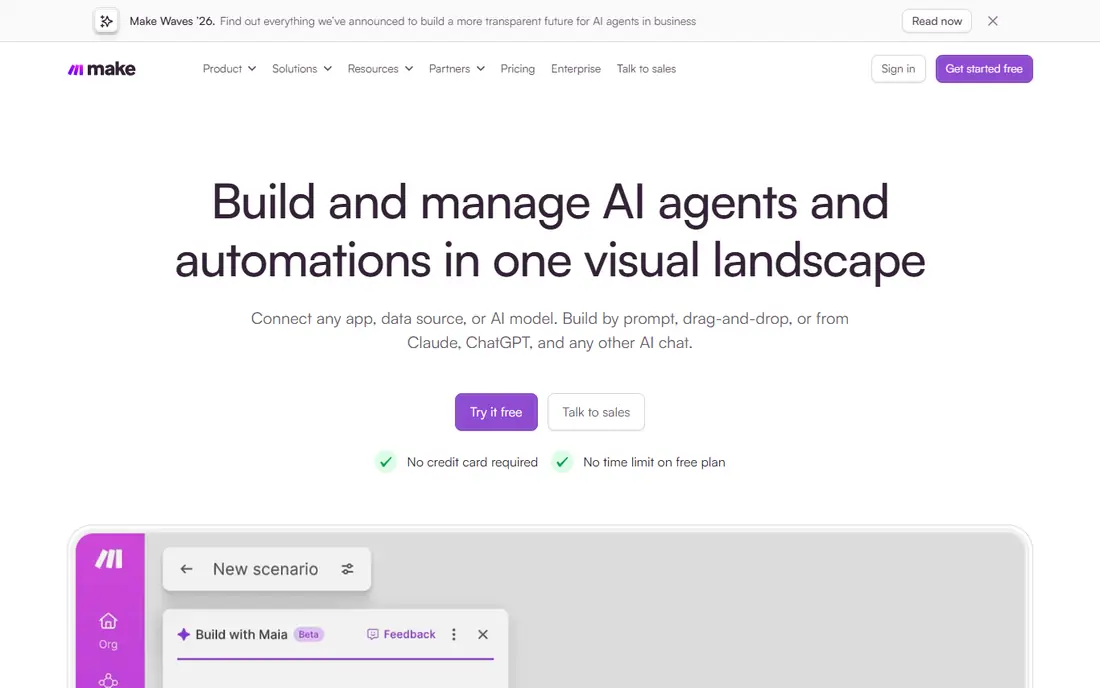
Make is a strong first stop for visual automation workflows. It covers the basics well and adds enough depth that most teams will not outgrow it quickly. Our pick for many readers starts here because the core workflow feels clear from the first week.
The honest catch is fit. Make works best when your workflow matches its model, and teams with unusual needs should test it first. A short trial with real data will tell you more than any feature list can.
- Clear focus on the core job
- Solid feature set
- Good fit for the stated audience
- Some advanced features need a higher plan
- Setup can take time
n8n
Ideal for: Self hosted automation
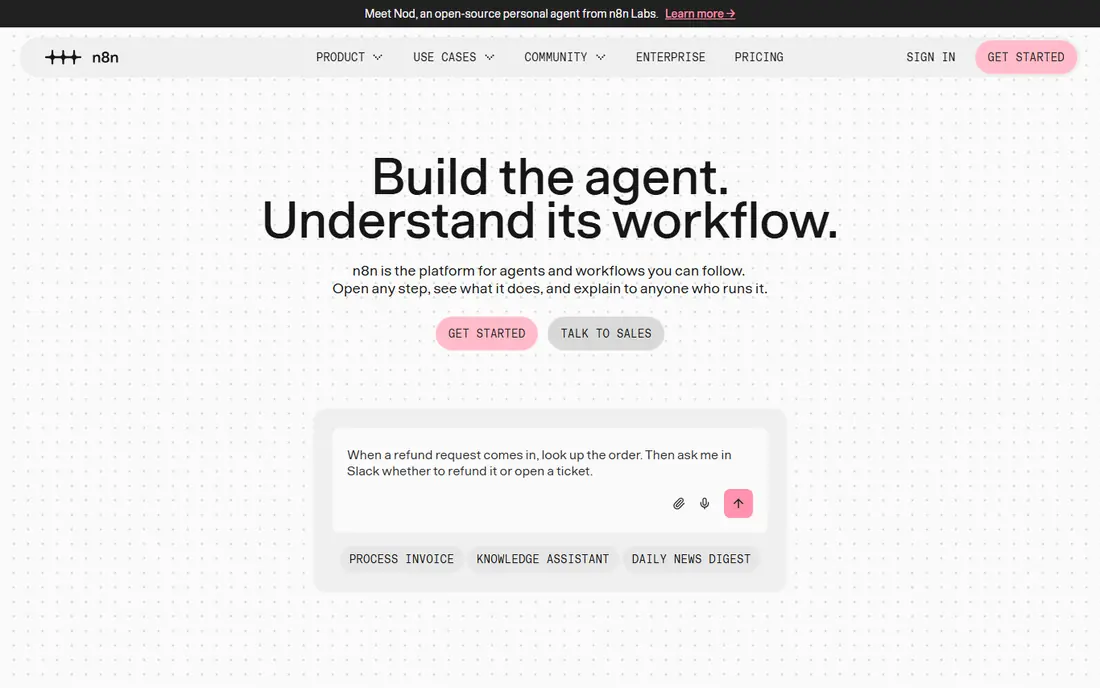
n8n suits self hosted automation better than most general tools do. The focus shows in how features are grouped and how reports are laid out. If that use case is your main job, this one deserves a close look before you decide.
The main trade off is complexity against control. You get more options as you scale, but that also means more settings to learn. Smaller teams should check whether they need that depth or would prefer a lighter tool.
- Well known and widely used
- Regular updates
- Good documentation and community help
- Pricing can rise as usage grows
- Check the plan limits before you commit
Workato
Ideal for: Enterprise automation

For enterprise automation, Workato is worth shortlisting early. It balances breadth and depth, so a small team gets room to grow while a larger team still finds the controls it needs. The setup effort is the main thing to plan for.
Pricing is the part to watch. The entry plan may cover a trial well but leave out a feature you need in daily use. Compare the full plan list on the vendor site before you judge the cost.
- Practical workflow and reporting
- Works for small and larger teams alike
- Not the simplest option for complete beginners
- Allow time to learn it
Pabbly Connect
Ideal for: Low cost automation
Pabbly Connect stands out for low cost automation because it keeps the day to day work simple. You can get started without a long training period, and the most used features are easy to find. That simplicity is a real plus for busy teams.
Support and documentation matter here, and they vary by plan. Read recent public reviews and the help pages before you rely on one feature. That check takes an hour and can save a painful switch later.
- Good depth in its specialty
- Flexible settings
- Useful integrations with common tools
- Some features are thinner than in specialist tools
- Test your must haves first
IFTTT
Ideal for: Simple personal automations
If simple personal automations is the priority, IFTTT makes a good case for itself. It has a clear point of view on how the work should flow, which helps new users settle in. Check that its limits line up with your volume before you commit.
Migration is the hidden cost with a tool like this. Moving history, users, and settings takes time, so ask about import help early. If the vendor offers onboarding, use it and test with a small group first.
- Simple to start with
- Clear interface
- Good value on entry plans
- Migration from another tool takes planning
- Export and import options vary
Microsoft Power Automate
Ideal for: Microsoft 365 automation
Microsoft Power Automate is built around microsoft 365 automation, and that focus is clear in the product. It trades some general purpose breadth for depth in this one area. Teams with that exact need will get more from it than from a broader tool.
One weakness to weigh is that no tool here does everything well. Microsoft Power Automate is strong in its core area and thinner elsewhere, so list your must have features first. If a must have sits outside that core, keep looking.
- Strong specialty features
- Reliable core performance
- Helpful onboarding resources
- Support quality can vary by plan
- Check what your plan includes
Activepieces
Ideal for: Open source automation
We include Activepieces for open source automation because it pairs a solid core with a fair amount of flexibility. It is not the flashiest option here, but it is steady and practical. That mix suits teams that value reliability over novelty.
Long term value depends on how often you use the advanced features. If you use them weekly, the price is easier to justify. If you use them rarely, a simpler and cheaper option may serve you just as well.
- Flexible plans and options
- Good reporting
- Suits growing teams
- Interface and workflow may feel busy at first
- A trial helps
Tray.io
Ideal for: Complex business workflows
Tray.io earns a place here for complex business workflows. It has grown a loyal following for good reason, and the basics are handled well. Look closely at pricing tiers, since the plan you need may sit above the entry level.
The best way to judge Tray.io is a side by side test on your own data. Run the same task in two tools, time it, and note where you got stuck. That small experiment beats a long comparison table on its own.
- Established product with a broad feature set
- Helpful support resources
- Costs add up with extra seats or usage
- Compare total cost, not just entry price
How we picked these
We started from the topic and looked for products that truly fit it, then checked each vendor site, pricing page, and app store listing. We left out products that had closed, changed focus, or did not match the topic, even when they were well known. Where we could not verify a price or free plan from the vendor, we wrote See website rather than guessing. We also weighed fit for different team sizes, since a tool that suits a large company can overwhelm a small team, and the reverse is also true. Public reviews and privacy policies helped us spot honest weaknesses, which we note in each write up. We did not claim hands on testing we did not do, and we compared published facts instead.
What to check before you switch automation tools
Use this short guide to turn the list above into a decision you can defend to your team and your budget.
Start with your must haves
Write down the five things the tool must do on day one, then check each one in a trial. A long feature list means little if one must have is missing or locked behind a higher plan. Test with real data and real users, not only with demo content.
Count the total cost
Add seats, usage, add ons, and any onboarding fee before you compare prices. Entry prices often leave out the plan most teams actually need. Ask for a written quote when your team size or volume sits near a tier boundary.
Plan the switch
Moving tools takes longer than signing up. Export your data early, test imports on a small sample, and train one small group first. Keep the old tool running until the new one has handled a full week of real work.
Frequently asked questions
What is the best option for most people?
There is no single winner for every team, since size, budget, and workflow change the answer. Start with the option that matches your main use case, then test it with real data. Our list gives you a shortlist, and a trial will narrow it to one.
How much do these tools usually cost?
Prices vary a lot by seats, usage, and plan tier, so check the vendor pricing page for the plan you need. Some offer a free plan and others offer only a paid trial. Compare total cost for your team size rather than the headline entry price.
Can I switch from the original tool easily?
Most tools offer import help or migration guides, but the effort depends on how much history you move. Export your data first and test a small import before you cancel anything. Keep both tools running during the changeover week.
Is there a free option worth trying?
Some tools in this list offer a free plan and others offer a free trial, and the product blocks above state what we found. Free plans often limit seats or usage, so they suit testing and small teams best. Check the limits before you rely on one long term.
How do I choose between the top two?
Run the same real task in both tools and note where you got stuck, how long it took, and what it cost. Ask your team which workflow felt clearer after a full day of use. That hands on test usually settles a close call faster than more reading.